Saturday, July 31, 2010

Secrets For a Flat Stomach

Secrets For a Flat Stomach

Developing a lean, flat stomach takes time and patience, especially when it comes to those last few kilograms in those hard to lose places. There is only one way to lose fat in the so-called ’stubborn areas,’ and that is with the correct combination strength training (with a extra focus on mid-section), cardiovascular exercise (short, hard workouts), and stable blood sugar (keeps you from adding additional fat and makes it easier for the body to use body fat for fuel).

Spot Reduction is a Myth - The first thing you need to realize is that it is impossible to ’spot reduce’ fat from one specific part of the body. Fat loss occurs systemically, meaning that you can’t control where the fat comes from. When you burn fat for energy, you will draw it from all areas of the body, and the first place you tend to put it on will be the last place it comes off.
Cardio, cardio, cardio - Doing all the abs exercises in the world will do nothing if you have a layer of fat covering it. Doing strength training, or lifting weights, would help, but not as much as aerobic exercise. If you want to add some ab exercises in after the cardio, that’s great, but be sure to work your whole torso, not just the upper abs — that includes the lower abs, lower back and the muscles that wrap around your sides.
For example, Walking, jogging, bicycling, elliptical exercise and stair climbing are all great fat burners. Most give up early in the workout. During the first 10 minutes of aerobic activity, glycogen (stored carbohydrates) is the primary fuel source. Because you don’t burn significant amounts of fat until glycogen stores are depleted, the key to maximum fat loss is to work out aerobically for 30-60 minutes continuously per session.
Diet – Its best to stay away from fried food and too many sugary desserts. Abdominal fat loss is a 50% exercise, 50% nutrition combination. Regardless of how much you workout, if the number of calories you take in is greater than the amount you burn, you’ll still put on abdominal fat.
Eat Small Meals Regularly - You should try and spread your calories out into five small meals a day instead of 2 or 3 big ones so that you don’t overeat in one feeding.
Give it Time – If you want to have a flat stomach in 3 weeks, forget it. Losing fat takes time, and it’s unhealthy to lose too much weight too fast. Gradual weight loss is healthier, and more likely to be sustained over time. Go for a lifestyle change, something you can live with for the rest of your life, or you will just yo-yo. It’s a marathon, not a sprint.
Feel free to share your tips and stories in the comments section below!

How to Increase Your Energy Levels Naturally

Increase Your Energy LevelsEveryday I hear the How to Increase Your Energy Levels Naturallysame complaint
s from the same people about how tired they are, how stressed they are etc. with no solution in sight! The key is to correct the situation versus standing idle and accepting it.
Forget about the energy drinks or pills. Learn to increase your energy naturally, and have a healthy steady supply to get you through each day. By adjusting your personal eating, sleeping and exercise habits, you can boost your energy the natural way and settle into a self-sustaining rhythm.

Essential Water – Keep your body hydrated throughout the day. The first sign of dehydration is fatigue. Your body can’t function at capacity without that good old H2O. A steady supply of water will naturally keep things flowing–including your energy.
Improve Sleeping Habits – Often a small adjustment of your sleeping habits can already do wonders for your energy levels.
  • Lying in bed is not sleeping: Don’t go to bed if your not sleepy and end up lying in bed pondering and stressing.  If you are drifting off at the computer, while reading, or watching TV, it’s time to get to bed. Your bedtime should and will vary from night to night. Let your body tell you when to sleep as opposed to the following the 8-hour rule.
  • Rise and Shine: Put an alarm and get up at the same time everyday.
  • Sleepy at Noon?: Try a powernap of 20 minutes in a quiet place.
Experiment and find out what your optimal sleep levels are.
Yoga, Exercising & Stretching – It sounds counter-intuitive, perhaps, but by expending energy on a regular basis, you will actually give yourself more of it in the end. The key is to set up a fairly regular schedule–about three times a week–and push to the point that you feel refreshed, not exhausted. Don’t overdo it. It may take a couple of weeks to get into the natural rhythm, so have patience and higher energy levels will follow.
Deep breathing exercise – Another great way to re-energize your body is with a quick deep breathing exercise. Sit on a chair with a straight back and breathe deeply while you focus on your breath going in – going out. At the same time use a powerful affirmation to invigorate your mind and body.
Eliminate Energy-Sappers From Your Diet – Have more alkaline-forming foods like fruits and vegetables. Avoid excess sugar and coffee as they lead to lower blood sugar levels–and less energy–after they give you an initial kick. Also one could pack some almonds and nuts for a quick and convenient protein snack.


Friday, July 30, 2010

Autographs of Indian Legends


Atal Bihari Vajpayee


Abul Kalaam Azaad


Amartya Sen


Amitabh Bachchan


A P J Abdul Kalaam


Asha Bhosle


Bipin Chandra Pal


Bismillah Khan


B R Ambedkar


C K Nayudu


C V Raman


Dev Anand


M K Gandhi


Khan Abdul Ghaffar Khan


Gopal Krishna Gokhale


Hargobind Khurana


Indira Gandhi


J R D Tata


Koneru Humpy


Lata Mageshkar


Manmohan Singh


Morarji Desai


Mother Teresa


Jawaharlal Nehru


Tanguturi Prakasam Pantulu


S Radhakrishnan


Rahul Bajaj


Rajiv Gandhi


Raj Kapoor


Ratan Tata


Pandit Ravi Shankar


Sarojini Naidu


Rabindranath Tagore


Bal Gangadhar Tilak


Vishwanathan Anand


Swami Vivekananda


Dr. Zakir Hussain

7 tips for working securely from wireless hotspots

7 tips for working securely from wireless hotspots

Wireless hotspots are changing the way people work. These wireless local area networks (LANs) provide high speed Internet connection in public locations—as well as at home—and need nothing more than a mobile PC such as a laptop or notebook computer equipped with a wireless card.
In fact, hotspots are an everyday connection method for travelers and remote workers to browse the Internet, check their e-mail, and even work on their corporate networks while away from the office.
Hotspots range from paid services, such as T-Mobile or Verizon Wireless, to public, free connections. Hot spots are everywhere, including:
  • Coffee shops
  • Restaurants
  • Libraries
  • Bookstores
  • Airports
  • Hotel lobbies
But they all have one thing in common—they are all open networks that are vulnerable to security breaches. And that means it's up to you to protect the data on your PC. In this article, we cover a few tips to make working in public locations more secure.

Try to choose more secure connections

It's not always possible to choose your connection type—but when you can, opt for wireless networks that require a network security key or have some other form of security, such as a certificate. The information sent over these networks is encrypted, which can help protect your computer from unauthorized access. The security features of different networks appear along with the network name as your PC discovers them.

Make sure your firewall is activated

A firewall helps protect your mobile PC by preventing unauthorized users from gaining access to your computer through the Internet or a network. It acts as a barrier that checks all incoming information, and then either blocks the information or allows it to come through. All Microsoft Windows operating systems come with a firewall, and you can make sure it's turned on.

To activate the Windows Vista Firewall

  1. Click Start and then click Control Panel.
  2. In Control Panel, click Network and Internet.
  3. Under Windows Firewall, click Turn Windows Firewall on or off.
  4. Ensure that On is selected.

To activate the Windows XP Firewall

  1. Click Start, and then click Control Panel.
  2. In Control Panel, click Network Connections.
  3. In the Network Connections window, under Network Tasks, click Change Windows Firewall Settings.
  4. In the Windows Firewall dialog box, on the General tab, ensure that On is selected.

Monitor your access points

Chances are that there are multiple wireless networks anywhere you're trying to connect. These connections are all access points, because they link into the wired system that gives you Internet access. So how do you make sure you're connecting to the right one? Simple—by configuring your PC to let you approve access points before you connect.

Configure Windows Vista Access Points

Windows Vista takes the guesswork out of connecting to hotspots because you are automatically prompted to approve new connections. In addition, after you approve a connection, you assign it a profile for future use.

Configure Windows XP Access Points

  1. Click Start, click Control Panel, and then click Network Connections.
  2. Right-click Wireless Network Connection, and then click Properties.
  3. On the Wireless Networks tab, make sure that the Use Windows to configure my wireless network settings check box is selected.
  4. Under Preferred networks, make sure that the name of the network that you want to connect to is highlighted, and then click Advanced.
  5. Click Access point (infrastructure) network only, and then click Close.

Disable file and printer sharing

File and printer sharing is a feature that enables other computers on a network to access resources on your computer. When you are using your mobile PC in a hotspot, it's best to disable file and printer sharing—when it's enabled, it leaves your computer vulnerable to hackers. Remember, though, to turn this feature back on when you return to the office.

Disable file and printer sharing in Windows Vista

  1. Click Start, and then click Control Panel.
  2. Click Network and Internet, and then click Network and Sharing Center.
  3. Under Sharing and Discovery, click the arrow next to File sharing, click Turn off file sharing, and then click Apply.
  4. Click the arrow next to Printer sharing, click Turn off printer sharing, and then click Apply.

Disable file and printer sharing in Windows XP

  1. Click Start, and then click Control Panel.
  2. Click Security Center, and then click Windows Firewall.
  3. Click the Exceptions tab, and then under Programs and Services, clear the File and Printer Sharing check box.

Make your folders private

When the folders on your mobile PC are private, it's more difficult for hackers to access your files.

To make a folder private in Windows Vista

Windows Vista not only makes folders private by default, but it also requires passwords for shared folders. As a result, you're already covered! But if you want to double-check, simply right-click on the folder in question, and select Properties. On the Security tab, you can review the set permissions.

To make a folder private in Windows XP

  1. Click Start, and then click My Computer.
  2. Click the drive where Windows is installed, and then click Documents and Settings.
  3. Open your user folder, right-click the folder that you want to make private, and then click Properties.
  4. On the Sharing tab, click Do no share this folder, and then click OK.
Repeat the steps above for each folder that you want to make private.

Encrypt your files

You can protect your files further by encrypting them, which requires a password to open or modify them. Because you must perform this procedure on one file at a time, consider password-protecting only the files that you plan to use while working in a public place.


Consider completely removing sensitive data from your notebook PC

If you're working with extremely sensitive data, it might be worth taking it off your notebook PC altogether. Instead, save it on a corporate network share and access it only when necessary. This way, you have multiple safeguards in place.

A few simple precautions can help make working in public places more secure. And by selecting the best connections and adjusting settings, you can enjoy productive and safe work sessions no matter where you are.

Keep Smiling
yogesh

10 Unique Laptops


10 Unique Laptops

Here are 10 really unique and cool laptops. From a dual screen laptop, to a split keyboard laptop to even a million dollar laptop!
 10 Unique Laptops


The Million Dollar Laptop
Unique Laptops

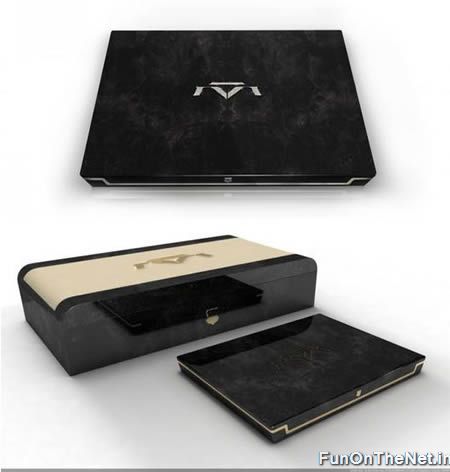
UK-based bespoke luxury goods creator Luvaglio has created the first million dollar laptop. That's what the first of their luxury laptops will sell for. Full details of the laptop have not been released at this point, but it is known that it incorporates a 17" wide LED lit screen with a specially designed anti-reflective glare coating for clear and brighter image, 128GB of Solid State Disk space and a slot loading Blue-Ray drive. There is an integrated screen cleaning device and a very rare coloured diamond piece of jewellery that doubles up as the power button when placed into the laptop, and also acts as security identification.


Orkin's Rolltop
Unique Laptops

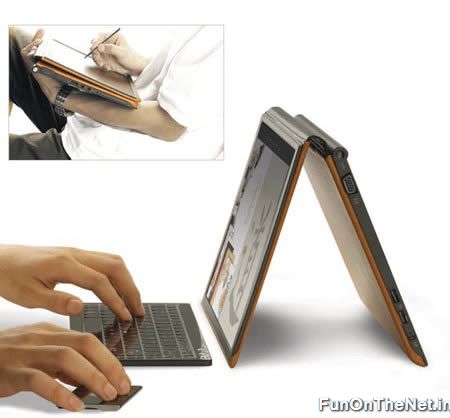
The Orkin Design Rolltop would definitely be an item in the must-have list of most geeks, even if it is but a concept at point of publishing. Why do we say so? This "notebook" comes with a flexible OLED display which also handles multitouch for those who are head over heels with the iPhone. When fully rolled out, it ends up as a 17" flatscreen display but can also be folded into a 13" tablet when required. No idea on whether it will run on wireless power or not, but it seems as though the detachable stand will hold the tablet's stylus, power adapter and USB ports.


Datamancer's Steampunk Laptop
Unique Laptops

This may look like a Victorian music box, but inside this intricately hand-crafted wooden case lives a Hewlett-Packard ZT1000 laptop that runs both Windows XP and Ubuntu Linux. It features an elaborate display of clockworks under glass, engraved brass accents, claw feet, an antiqued copper keyboard and mouse, leather wrist pads, and customized wireless network card. The machine turns on with an antique clock-winding key by way of a custom-built ratcheting switch made from old clock parts.


Thinkpad Reserve Edition
 Unique Laptops
When IBM handed all of their laptop division to Lenovo, many feared that the classic Thinkpad design would lose its way, but with this improved design most of the people would be impressed by the laptop concept.


Ergonomic Dual Screen Split Keyboard Laptop

Unique Laptops
The sweetness of this amazing Ergonomic Dual Screen Split Keyboard Notebook Portable Personal Computer isn't only the fact that the keyboard splits open to give a computer user more room to fit their hands, but that it has a second LCD hidden underneath it. What a fantastic idea. The second screen works in concert with the first screen – giving the user a “drag and send” capability for open windows or programs, or act independently as a pen-based input screen for note taking, sketching, and just about anything else a user can do to write into the interface. This makes the EDSSKN of tremendous benefit to not only writers and word processors, but artists and designers as well.


HP Girly Laptop

Unique Laptops
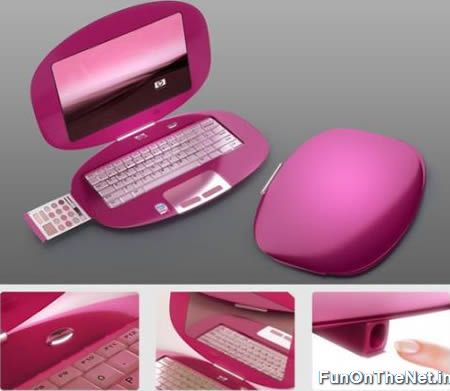
Some girls want the extra attention not only from men but also from actual gadgets and even cool looking laptops, such as these HP concepts made especially for women. Each one of these designs by Nikita Buyanov has its own set of specific that would recognize special pampering that a girl wishes for; they are classy looking, stylish, trendy and even provide extra productivity for your personality. Unfortunately they have yet to be truly manufactured, but if enough would show interest, maybe next year's HP models would provide a different feminine look that is made just for women.


Canova's Dual-Screen Laptop

Unique Laptops
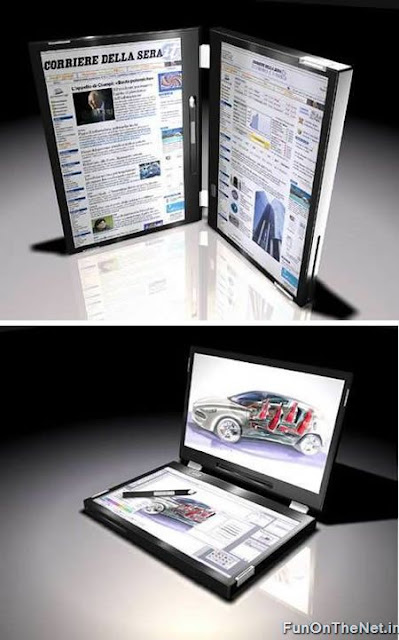
This Dual Touch Screen Laptop from Canova is an ultimate notebook design meant for the creative mind. The notebook features dual display with touch-sensitive screens, sketch pad, music score, graph paper, an electronic pen and a dedicated hardware for its smooth functioning. Unfortunately, it's only sold in Italy and Australia.


Fujitsu's DJ Laptop

Unique Laptops
Fujitsu DJ laptop, as it was called, has a 20-inch primary LCD display easily folded closed to enable the turntable function, which can be accessed via a touch-sensitive screen on the outside. The laptop lets you browse all your favorite tracks same as on a vinyl turntable.


TYPE-N01 Emergency Laptop
Unique Laptops

NEC has teamed up with Takara to create the presumably mad scientist-approved machine, which sports all the token stickers, labels, and even wallpapers that make this device so similar to those seen laying around Duke Nukem laboratories. Beneath the facade is a LaVie G type L laptop, 15.4-inch display. Flanked on the side is the very necessary "Emergency Button," which apparently shuts down the machine in case of unexpected intruders. Launched in 2006, only 300 units of the highly secretive TYPE-NO1 were made costing up to ¥174,510 ($1,476).


2015 Compenion Laptop

Unique Laptops
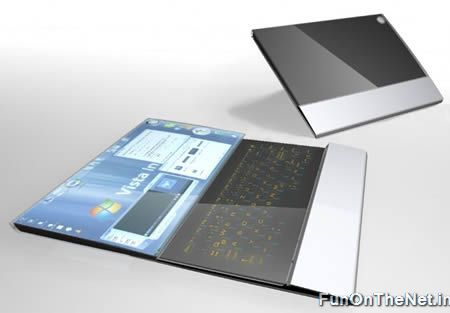
Felix Schmidberger design for a laptop for 2015 with OLED touch screen. The computer itself has an OLED touchscreen, where you can directly work on, much like with a umpc or pda. The whole screen is a slider, as it can be moved forward to reveal a secondOLED touchscreen underneath, where you can have a keyboard or working controls, similar to a setup with 2 monitors.


Digg!Reddit!Del.icio.us!Facebook!StumbleUpon!Yahoo!


Read more: http://www.funonthenet.in/articles/unique-laptops.html#ixzz0v9jR0J5h